Windows {#windows}
Windows hold panes. They reside within a session.
They also have layouts, which can be one of many preset dimensions or a custom one done through pane resizing.
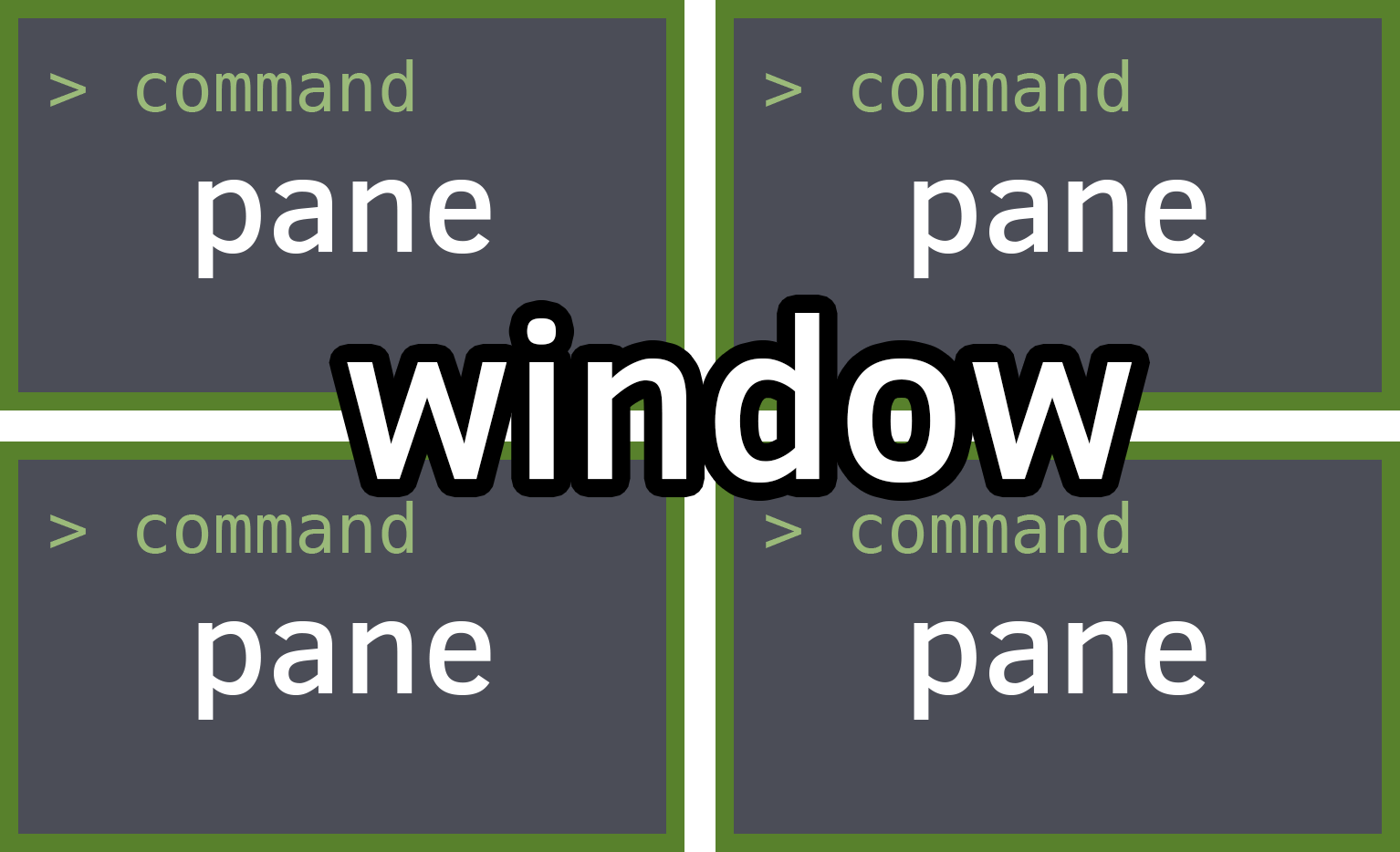
You can see the current open windows through the status bar.
Naming windows
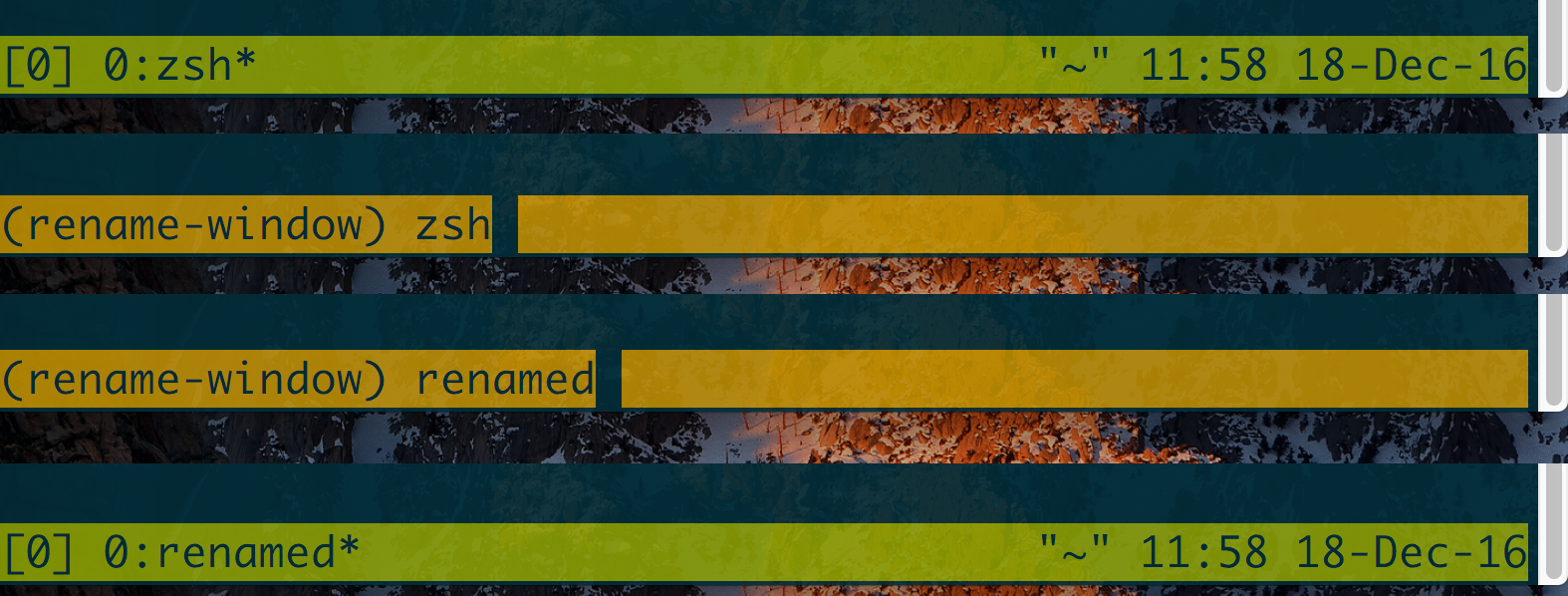
Just like with sessions, windows can have names. Labelling them helps keep track of what you’re doing inside them.
 Renaming
When inside tmux, the most common way of doing that is Prefix + ,. This will
open a prompt in the tmux status line where you can alter the name of the
current window.
Traversing Windows
Prefix + 1, Prefix + 2, and so on… will get you to navigate to windows
by their index.
Prompt for a window index (useful for indexes greater than 9) with Prefix +
'.
I> ### POWER MOVE: Search + Traverse Windows for Text
I>
I> You can forward to a window with a match of a text string by doing Prefix +
I> f.
You can move to the last selected window with Prefix + l.
You can bring up a list of current windows with Prefix + w. The benefit of
this is it also gives you some info on what’s inside the window. Helpful if
you’re juggling around a lot of things!
Moving Windows
$ tmux move-window can be used to move windows.
The accepted arguments are -s (the window you are moving) and -t, where you
are moving the window to.
You can also use $ tmux movew for short.
Example: move the current window to number 2:
{language=shell, line-numbers=off} $ tmux movew -t2
Example: move window 2 to window 1:
{language=shell, line-numbers=off} $ tmux movew -s2 -t1
The shortcut to prompt for an index to move the current window to is Prefix +
..
Layouts {#window-layouts}
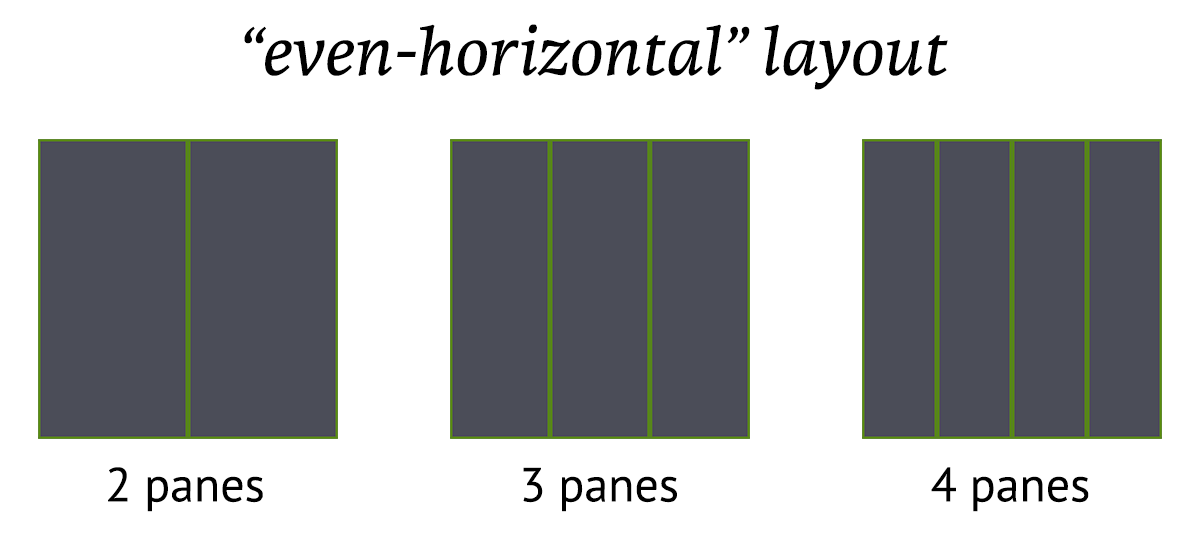
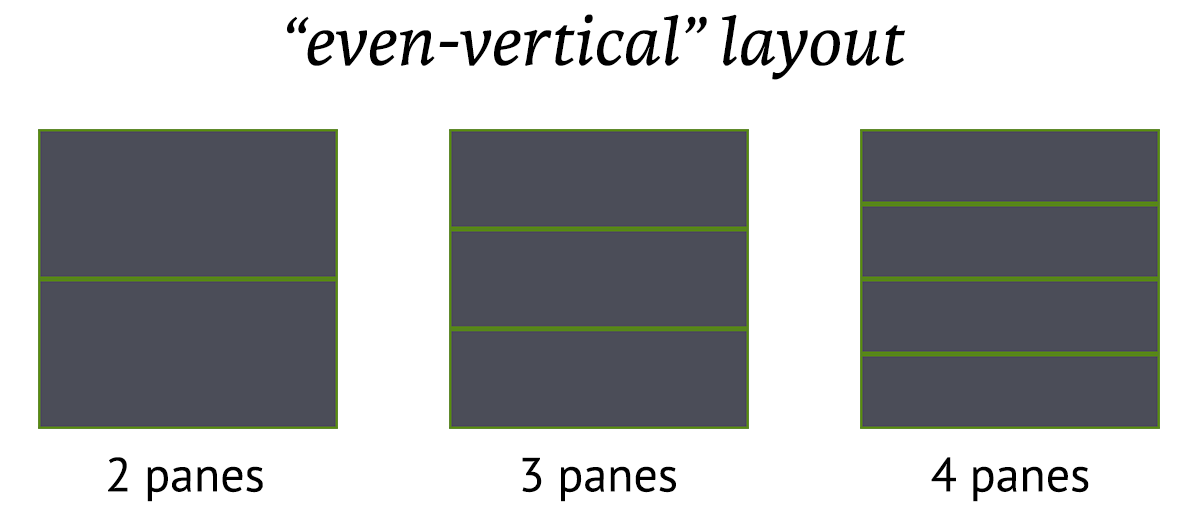
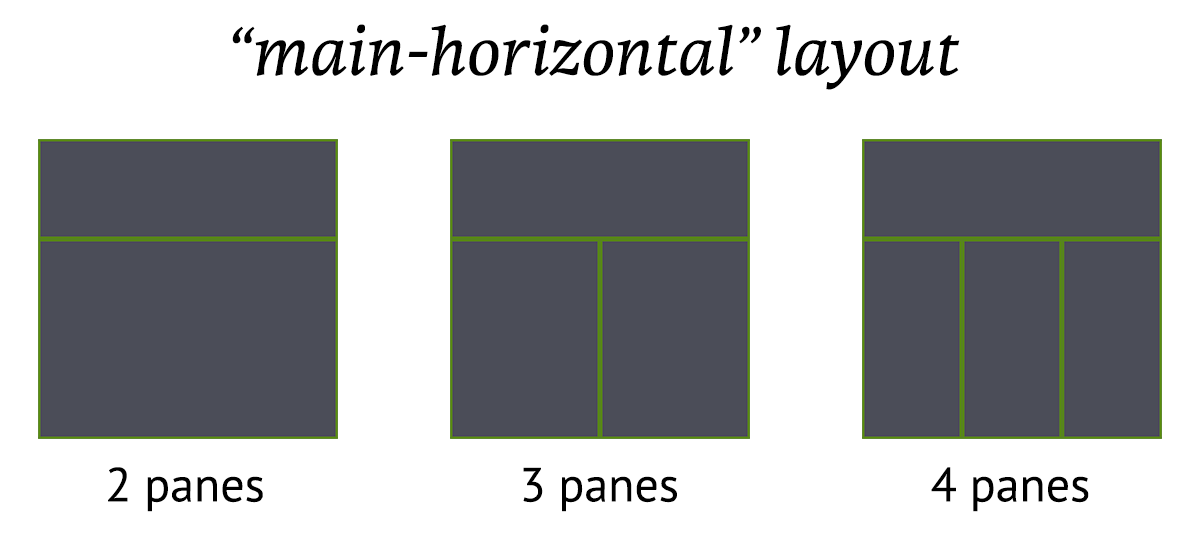
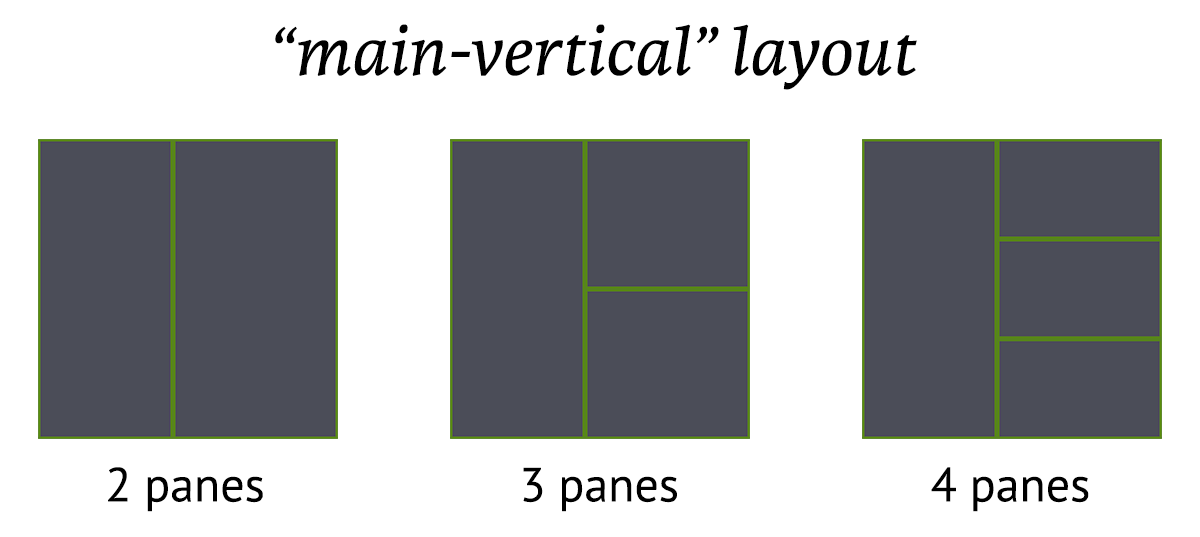
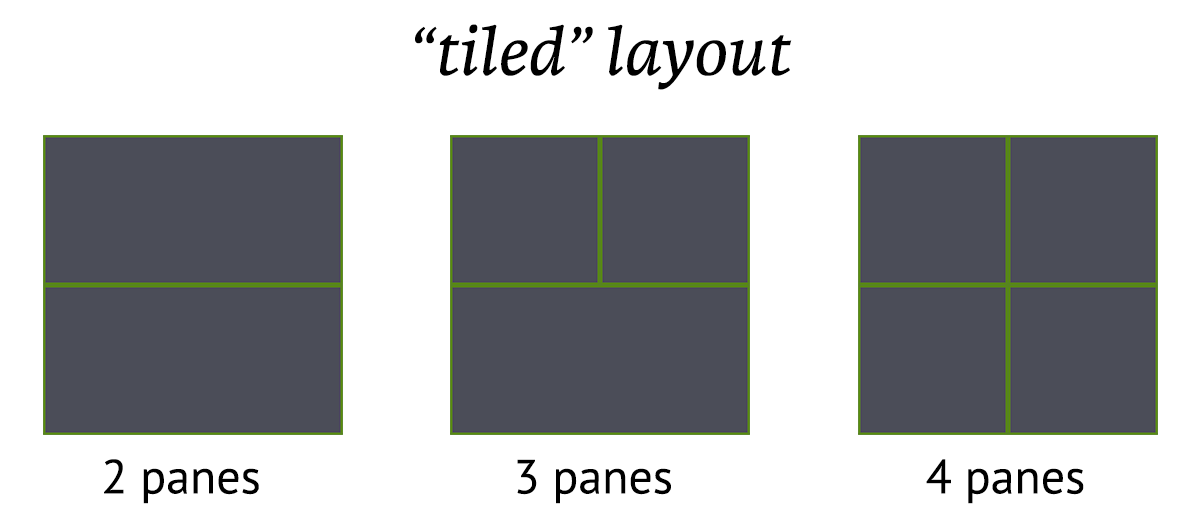
Prefix + space switches window layouts. These are preset configurations
which handle proportions of panes.
As of tmux 2.3, the supported layouts are:
{width=75%}
{width=75%}
{width=75%}
{width=75%}
{width=75%}
Specific touch-ups can be done via resizing panes.
To reset the proportions of the layout (such as after splitting or resizing
panes), you have to run $ tmux select-layout again for the layout.
This is different behavior than some tiling window managers. awesome and xmonad, for instance, automatically handle proportions upon new items being added to their layouts.
To allow easily resetting to a sensible layout across machines and terminal dimensions, you can try this in your config:
{language=shell, line-numbers=off} bind m set-window-option main-pane-height 60; select-layout main-horizontal
This allows you to set a main-horizontal layout and automatically set the
bottom panes proportionally on the bottom everytime you do Prefix + m.
Layouts can also be totally custom. To get the custom layout snippet for your current window, try this:
{language=shell, line-numbers=off} $ tmux lsw -F “#{window_active} #{window_layout}” | grep “^1” | cut -d “ “ -f2
To apply that layout, do this:
{language=shell, line-numbers=off} $ tmux lsw -F “#{window_active} #{window_layout}” | grep “^1” | cut -d “ “ -f2 > 5aed,176x79,0,0[176x59,0,0,0,176x19,0,60{87x19,0,60,1,88x19,88,60,2}]
# resize your panes or try doing this in another window to see the outcome
$ tmux select-layout "5aed,176x79,0,0[176x59,0,0,0,176x19,0,60{87x19,0,60,1,88x19,88,60,2}]"
Closing windows
From inside the current window, try this:
{language=shell, line-numbers=off} $ tmux kill-window
Another thing, when scripting or trying to kill the window from outside, use a target of the window index:
{language=shell, line-numbers=off} $ tmux kill-window -t2
You can easily find the window index through the middle section of the status line.